There are several ways to do this but I recently came across the simplest and best way in my opinion. I thought I had been pretty smart about this but this is a real “duhhhh” solution.
I used to create the pattern myself by creating a square pattern and saving it by going, Edit / Define pattern. This method works of course but it´s a drag doing and not all that efficient.
There are a bunch of tutorials around the web on how to do this with the brush. But I find that method to suck somewhat when your doing typical web designer work. It´s very inflexible.
Enter the styles palette
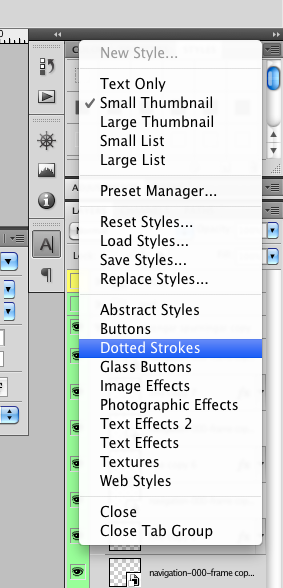
So the quick and easy method is just to use the styles palette. It comes with built in styles and some variations on dotted strokes.
Definitely not rocket science but a much faster and more elegant way to do this. Easy to copy stuff around and change as needed.
There are several versions to chose from, stroke weight, pixel spacing and other stuff. Be sure to try this out and save your self some valuable mouse moving time.
-
- Saving a pattern manually in Photoshop
-
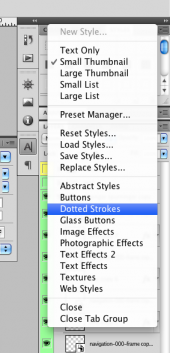
- Open up styles and chose the dotted strokes from the fly out menu
-

- Nice looking, pixel perfect dotted strokes

.jpg)
You should follow me on Twitter here